Extending Your Notebook’s Battery Life


My friends often ask me why their notebook batteries seem to be running out of power too quickly when travelling. Following a brief investigation into the matter, I would usually find a certain issue that caused the problem. The issues vary from one person to the other, but after a while I learned that people kept repeating the same basic mistakes that would, over time, drain their notebook battery and leave them with less time than what they should’ve had. So, based on that experience, I have compiled a list of tips that could gain you some additional life out of your notebook’s battery. Here they are:
1. Set the Correct Power Management
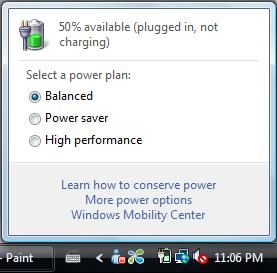
You will find the power management setting on the lower right corner of the taskbar or in the control panel. It gives you access to several aspects related with your notebook’s power consumption scheme. When travelling, it’s best to select the “Power Saver” mode which will reduce the processor’s speed to cut power consumption. The effect is obvious, your battery will last longer because less power is consumed. The overall performance will be reduced as well, but that’s always a worthy tradeoff for the extra battery life. After all, for a mobile warrior, it’s better to be limited to lightweight tasks -such as word processing, internet browsing, etc.- than not being able to do anything at all due to a drained battery.
Several power-related options are also available here. You can, for example, turn off the notebook’s display (and channel the output to some external display instead), enter hibernation mode, or turn off the hard disk if you plan on not using the notebook for an extended period of time.
2. Add More Memory (RAM)
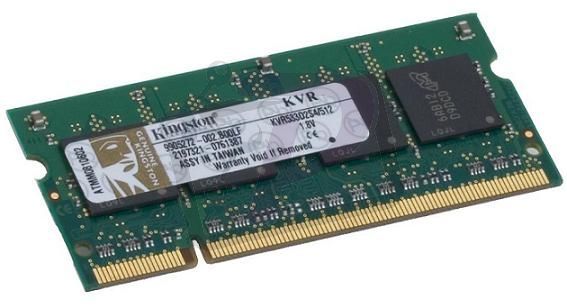
More memory means more space to run more programs without the hard disk working too often (to exchange virtual memory data). The hard disk’s mechanics consume more electricity than one or two additional RAM modules.
3. Defrag Your Hard Disk
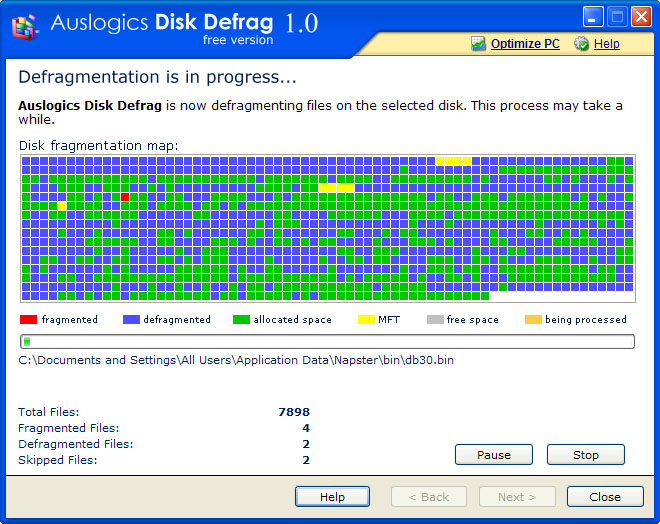
Defragging your hard disks will make it work faster and more efficient in running programs, reducing overall power consumption.
4. Lower the Display Contrast
Lowering contrast rate cuts the screen’s power consumption significantly. Don’t sacrifice your vision though; adjust the contrast to a level that is comfortable enough on your eyes.
5. Turn Off Background Processes/ Programs.
More programs running on the background means more processing power is required and thus, the battery drains faster. You can select which programs to start during system start-up (and keep on running on the background) by opening the “run” programs window and typing “msconfig”. In the window that appears shortly after, go to the “startup” tab and enable/ disable the desired programs. Note that some programs cannot start if their startup routine (as contained in this tab) is not loaded. So, choose wisely and only disable the programs that are unnecessary for your activity.
6. Eject CD/DVD Before Turning Off the Notebook

Every now and then, we forgot to eject CDs or DVDs from our notebook’s optical drive before turning it off. This will consume power as the notebook will attempt to read the disc when it’s turned back on. When not used, it’s best to leave the optical drive empty.
More Articles